 GIFDesk
GIF Too Large for Discord? Start With These Settings
Try the GIF compressor for Discord.
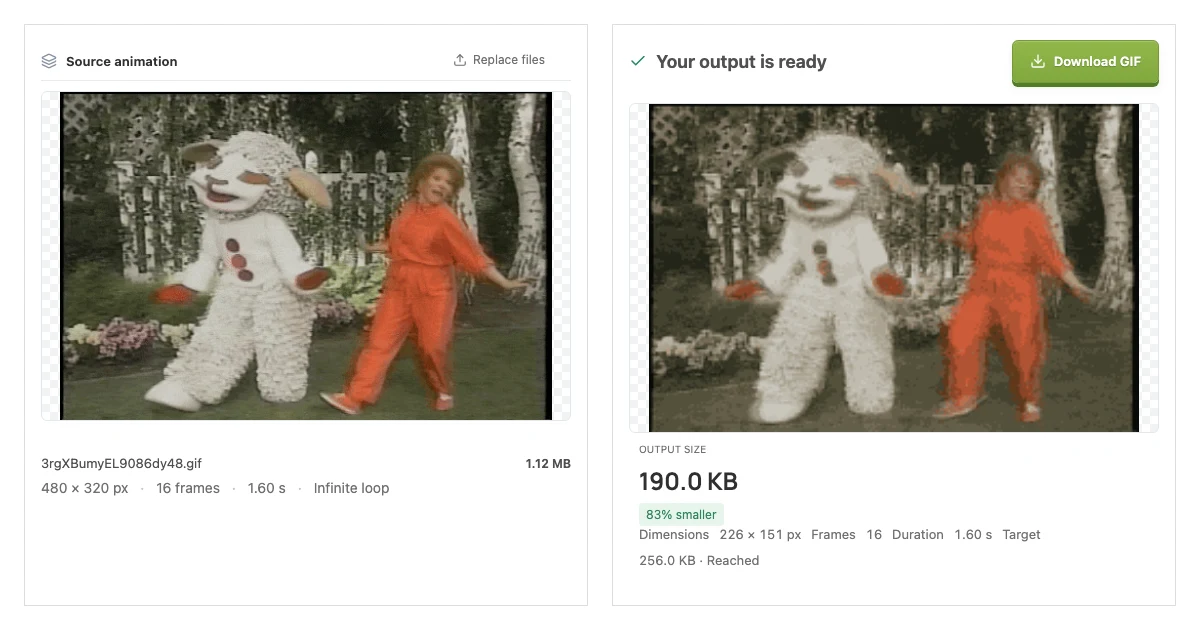
The example above uses a real Lamb Chop reaction GIF. With a 256 KB target, the downloaded result was 194,565 bytes, 226 × 151 pixels and 1.6 seconds long. The comparison places the actual tool’s source and output panels side by side. This is a file-processing result, not a tested Discord upload or a guarantee for another GIF.
Your GIF looks tiny in chat. Discord still rejects it. The visible size and the file size are different problems: a small-looking animation can contain hundreds of frames.
Start with the upload limit for the exact destination, then use a GIF compressor for Discord to reduce the downloaded file below it.
Before the next upload: confirm where the file will go, change one setting at a time, and inspect the downloaded result. A small enough file can still fail a format, duration or permission check.
Check the destination
A Discord GIF compressor handles the byte-size problem. If you also need to resize GIF for Discord, check pixel dimensions separately: a smaller file is not automatically the right shape for an emoji or avatar.
Custom emoji, stickers and ordinary attachments can have different requirements. Check Discord’s current sticker rules when preparing a sticker rather than assuming one size limit applies everywhere. GIFDesk includes Discord target-size presets, but those presets are starting points, not a promise that an upload will be accepted.
Reduce the expensive parts
Choose the matching target, or enter a custom size. If the subject stays recognizable at a smaller resolution, allow smaller dimensions. Reduce the color palette next and inspect edges or gradients for visible changes.
A long pause can waste frames. Trim the GIF before compressing when only a short reaction matters. Changing playback speed alone keeps the frames and is not a reliable file-size fix.
Verify before uploading
Download the result and check its actual byte size. Preview the full animation, including transparent areas. If the target was not reached, lower dimensions or shorten the clip and try again. Leave some room below the destination's limit instead of aiming at an ambiguous rounded number.
The trap: fixing the number while losing the reaction
Imagine a reaction GIF where the joke depends on a raised eyebrow. You can make the file fit by shrinking it aggressively, but if the eyebrow becomes a handful of indistinct pixels, the upload has succeeded while the reaction has failed. Decide which feature must survive before touching the settings. For a face, that may be the expression; for a tutorial, it may be the text; for a sticker, it may be the silhouette.
Check the animation at roughly the size people will see it. A full-width preview can hide how little detail remains in a small chat display. If you have to enlarge the output to understand it, try shortening the animation before making the canvas smaller again.
A practical order for the next attempt
Work from the original, and change one important setting at a time. First remove an unnecessary pause. Then remove empty borders if the subject never uses that space. Next choose dimensions appropriate for the destination. Only after those edits should you compare smaller palettes or fewer frames.
This order is a useful starting point, not a rule that guarantees the smallest file. A simple flat-color animation and a noisy camera recording can respond differently. Record the settings of the first version that looks acceptable, so you have a reference if a later attempt looks worse.
If the target is still missed, ask whether you really need the whole action. A short recognizable gesture can be more useful in chat than a longer animation with heavily degraded detail. The right compromise depends on what the GIF is supposed to communicate.
When Discord rejects a file that already fits
Do not keep lowering the palette blindly. File size is only one acceptance condition. Check the destination's format and dimension requirements, whether animated content is allowed there, and any account restrictions that apply to that upload. GIFDesk can edit a GIF, but it cannot grant a Discord account permission to use a particular feature.
Also make sure you selected the newly downloaded file rather than the original. Similar filenames are an easy source of confusion after several attempts. Open the chosen file, verify its animation, and inspect its size before trying the upload again.
For more control over the trade-offs, use the GIF resize tool to set explicit dimensions. Return to the compressor with one clear next change instead of turning every setting down at once.